
Aeris connects to Rithmic directly from your computer. Your prop firm or futures broker issues the Rithmic login, and Aeris asks for the same four things every Rithmic platform does: a server, a system, a user ID, and a password.
You need Aeris installed and signed in first. If you haven’t done that yet, follow the download and install steps, then come back here. The connection itself takes about a minute.
1. Find your Rithmic login
Your firm sends the Rithmic user ID and password by email or shows them in its dashboard. They are not the email and password you use on the firm’s website. Note the system name the firm tells you to choose as well; Apex, for example, says to choose the APEX system on the Chicago Area gateway.
If the login is new, your firm may ask you to sign in once with Rithmic’s own R | Trader Pro and accept Rithmic’s market data agreements, choosing non-professional if that applies to you. Until those agreements are signed, Rithmic doesn’t stream market data to any platform, and Aeris reports that the account requires an agreement.
2. Open Accounts and connections
Every connection lives in one dialog, so you never have to look for a provider-specific settings page.
- Select Accounts at the right end of the Aeris header.
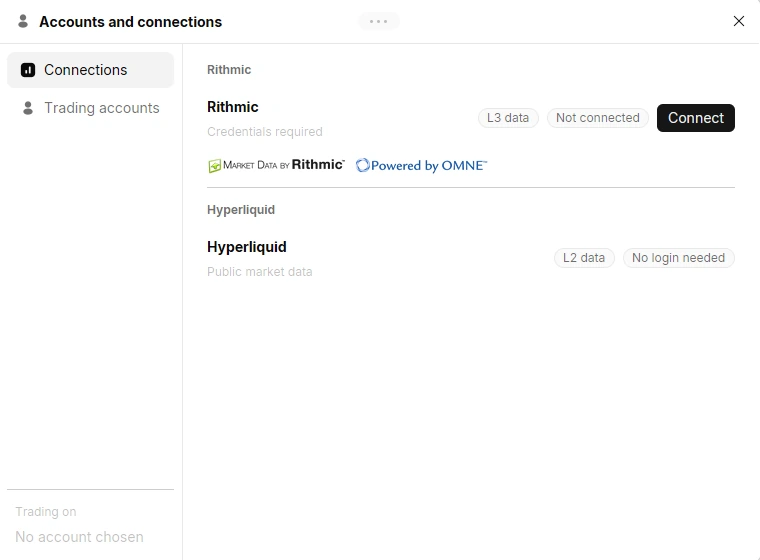
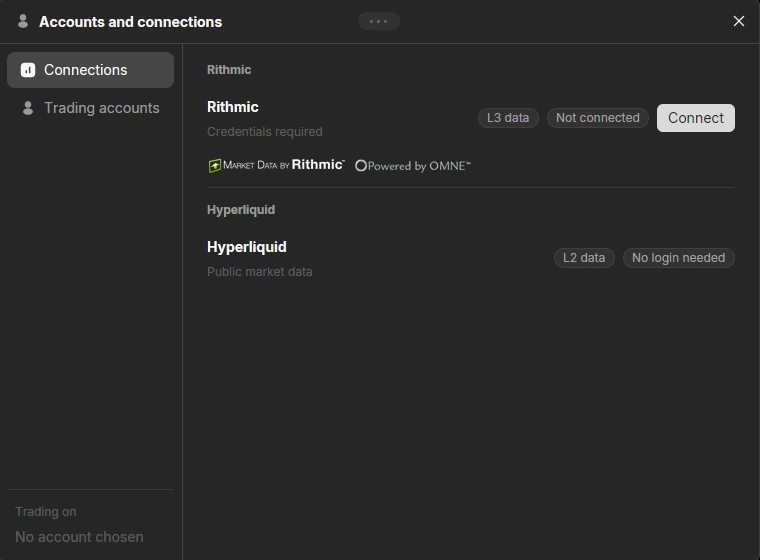
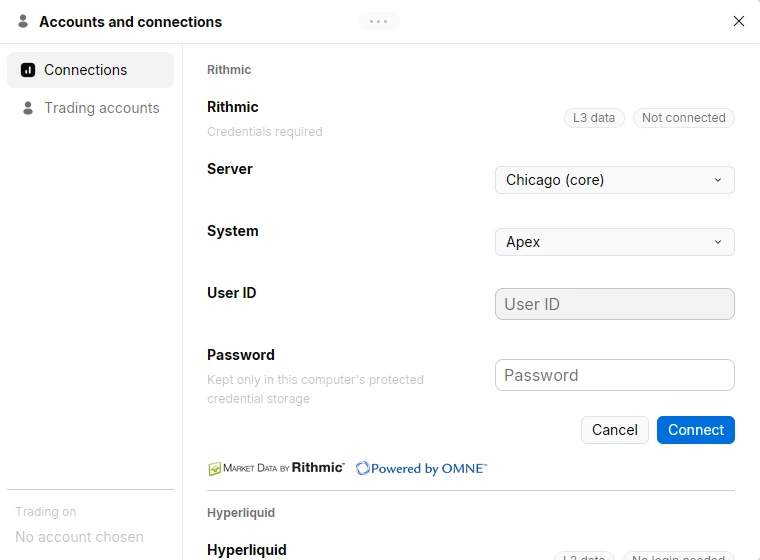
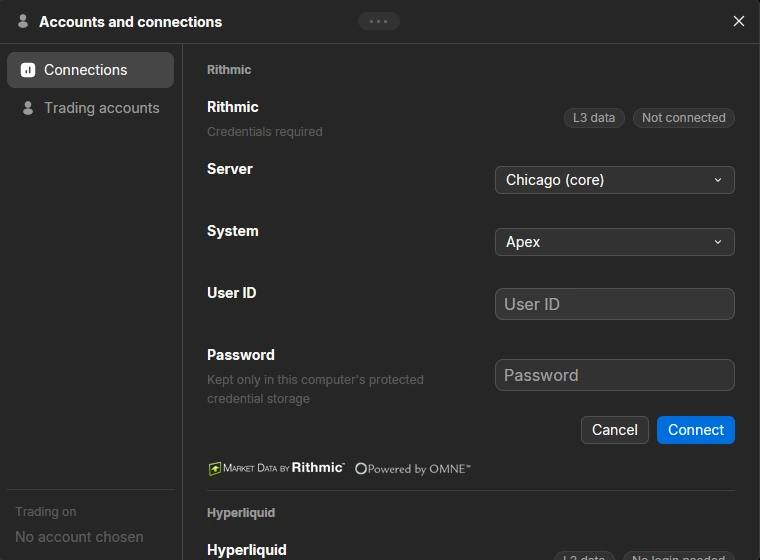
- Stay on the Connections tab. Rithmic is listed as Not connected with Credentials required.
- Select Connect on the Rithmic row to open the login form.
3. Choose the server and your firm’s system
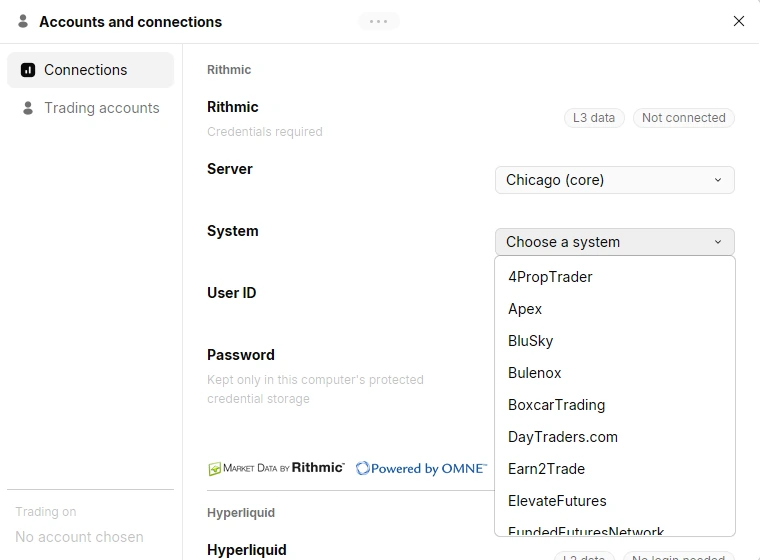
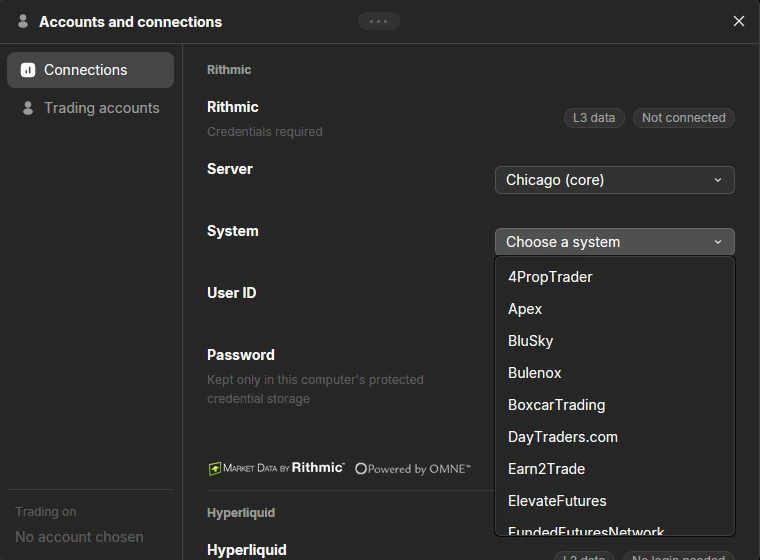
The form starts on the Chicago (core) server, which is what most prop firms call Chicago Area. Keep it unless your firm names a different server.
Open the System list. Aeris reads it from the server you chose, so it shows exactly the systems that server offers, such as 4PropTrader, Apex, BluSky, Bulenox, Earn2Trade, and ElevateFutures. Pick the system your firm named; a login only works on its own system.
4. Enter your user ID and password
Paste the Rithmic user ID and password exactly as your firm sent them, with no extra spaces, then select Connect. When the login succeeds, Aeris confirms which system and server you’re signed in to and saves the login on this computer, so it connects on its own the next time you open the app.
The password is kept only in your operating system’s protected credential storage and is sent only to Rithmic. Aeris has no server that receives your login, your market data, or your orders.
5. Chart futures and choose an account
Once Rithmic shows as connected, open the symbol menu in the header and search for a contract such as ES, NQ, CL, or GC. Charts, footprint, the order book, and Time & Sales then run on Rithmic data, with order-level depth where your data permissions include it.
The Trading accounts tab lists your practice accounts and the broker accounts your Rithmic login reports, each with its status. The account you choose with Use appears under Trading on, at the bottom of the dialog. Practice accounts trade simulated funds on live prices, which is the safest place to learn the order ticket and chart trading first.
Troubleshooting
Most failed connections come from a mistyped login or the wrong system. Work through these checks in order.
- The login is rejected. Paste the user ID and password again without leading or trailing spaces, and make sure the system matches the one your firm named.
- No systems appear. Check your internet connection, then reopen the System list. If your firm uses a different server, choose it first.
- Aeris says the account requires an agreement. Sign in once with R | Trader Pro and accept Rithmic’s market data agreements, then connect again in Aeris.
- Something else went wrong. Contact support and attach the log from
%LOCALAPPDATA%\Aeris\logs\aeris.logon Windows or~/Library/Application Support/Aeris/logs/aeris.logon macOS. The log never contains your password.
Frequently asked questions
Sources
Primary sources checked November 2, 2026.