
Windows and macOS
Download Aeris
Install the desktop terminal in about a minute. When it first opens, Aeris asks you to sign in through your browser, and you can create a free account right there.
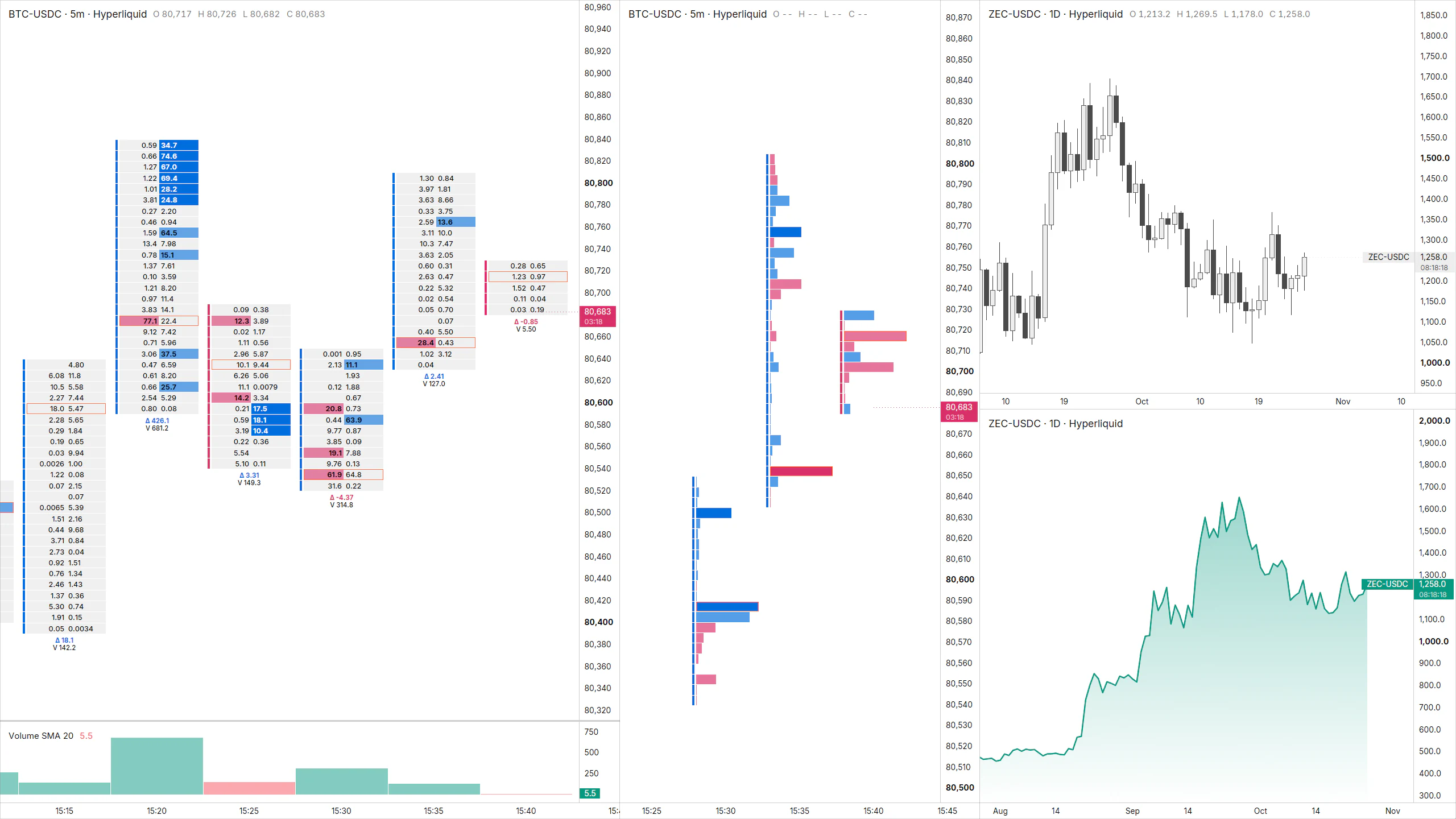
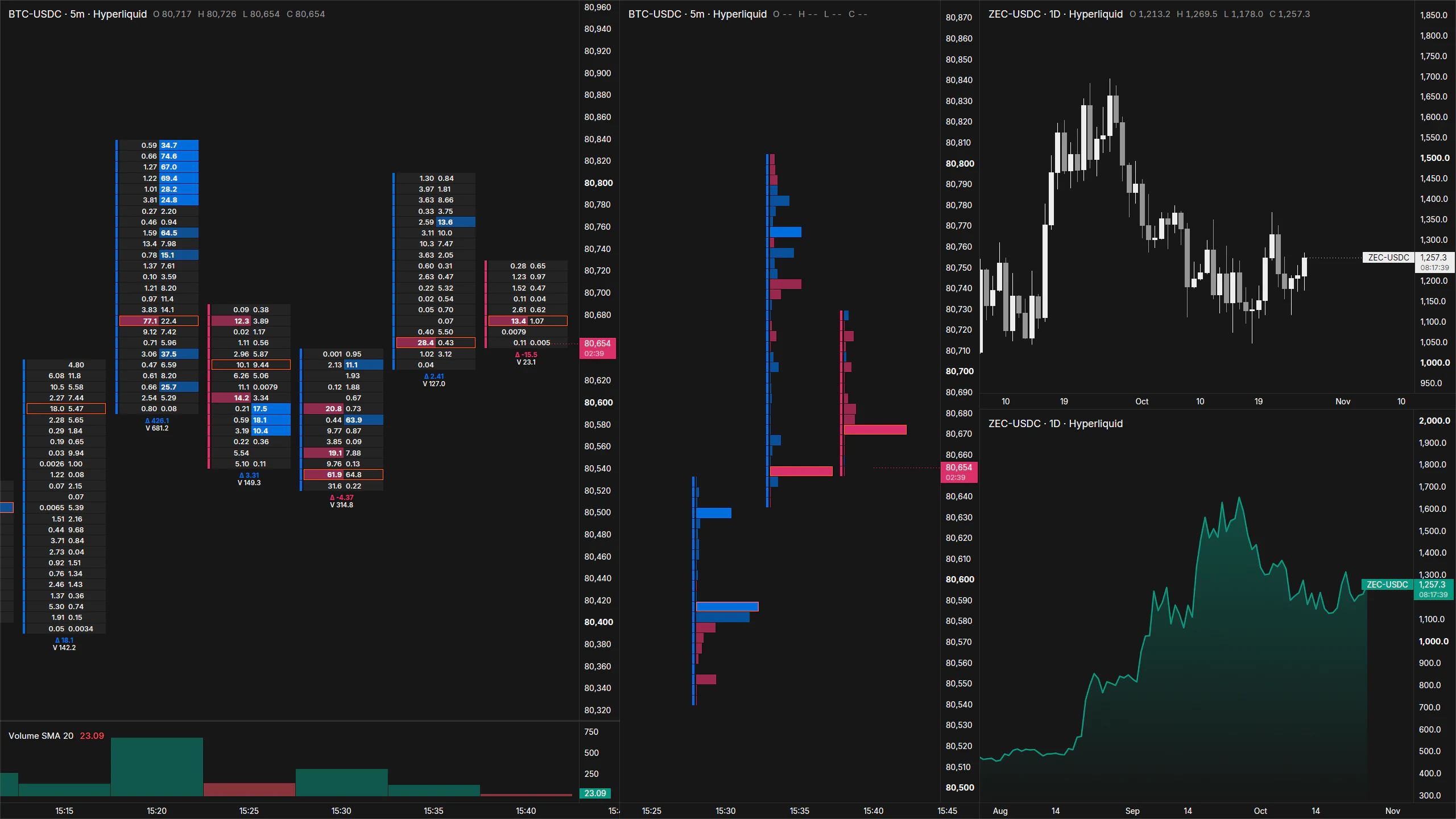
All platforms
One terminal, built natively for each.
Each installer is published with its version, size, and SHA-256 checksum so you can verify the file.
Windows
Windows 10 or 11, 64-bit
Loading…
macOS
macOS 11 or later on Apple silicon (M1 or later)
Loading…
Install
Install in four steps.
Aeris isn't code signed or notarized yet, so Windows and macOS each ask you to confirm the app once. After that it opens like any other app.
Windows
- 01
Open the installer
Open the Aeris-Terminal-Setup file from your Downloads folder.
- 02
Get past SmartScreen
If Windows shows “Windows protected your PC”, select More info, check that the app is Aeris-Terminal-Setup, then select Run anyway.
- 03
Install for your user
Follow the installer. It installs Aeris Terminal for your Windows user only, so it needs no administrator password, and adds it to the Start menu.
- 04
Launch Aeris
Leave Launch Aeris Terminal ticked and select Finish. Next time, open it from the Start menu.
macOS
- 01
Copy to Applications
Open the disk image and drag Aeris Terminal onto the Applications folder.
- 02
Try to open it once
Open Aeris Terminal from Applications. macOS says it can't verify the app; select Done.
- 03
Allow it in Privacy & Security
Open System Settings, select Privacy & Security, scroll down to Security, and select Open Anyway beside the message about Aeris Terminal. The button stays for about an hour after you try to open the app.
- 04
Confirm once
Select Open Anyway again and enter your Mac login password. macOS remembers the choice, so Aeris opens normally from then on.
First launch
Sign in once, then trade.
Aeris opens a sign-in window the first time it starts. Sign-in happens in your browser, so Aeris never sees your Google or account password.
Signing in
- 01
Select Sign in
Aeris opens a small sign-in window and sends you to the Aeris sign-in page in your default browser.
- 02
Sign in in your browser
Continue with Google or your email. No account yet? Create one on the same page; it takes a minute and is free.
- 03
Return to Aeris
Your workspace opens by itself. Aeris remembers the sign-in, so you won't be asked again on this computer.
Why Aeris asks you to sign in
Your Aeris account identifies you and your plan, and it is how you manage your profile on this site.
Aeris keeps only a sign-in token and your name, email, and picture, in your computer's protected credential storage. Your charts, market data, orders, and trading history stay on your computer; no Aeris server receives them.
If your internet drops, Aeris stays signed in and reconnects when it can.
Next steps
After you install.
- GuideConnect your Rithmic accountUse the Rithmic login from your prop firm or broker for futures data.
- GuideLearn the order-flow toolsFootprint, delta, CVD, big trades, the order book, and Time & Sales explained.
- ChangelogSee what's newEvery Aeris release since 1.0.0, newest first.
- SupportGet helpInstallation questions, sign-in problems, and feedback.
Details
Requirements, updates, and verification.
System requirements
- Windows: Windows 10 or 11, 64-bit.
- macOS: macOS 11 or later on Apple silicon (M1 or later).
- An internet connection for sign-in and live market data.
Updates
Aeris checks for a newer published version while it runs and shows a notice when one is out. Download it here and install it over your current copy; your workspace, layouts, and practice accounts are kept.
Verify your download
Compare the SHA-256 printed by the command below with the one listed above for your platform.
Uninstall
Windows: Open Settings, then Apps, then Installed apps, and uninstall Aeris Terminal. Your workspace, practice accounts and logs stay in %LOCALAPPDATA%\Aeris.
macOS: Drag Aeris Terminal from Applications to the Trash. Your workspace, practice accounts and logs stay in ~/Library/Application Support/Aeris.